2 Start Exporing Matrx
Matrx is your AI-powered all-in-one collaboration hub, combining chats, HD audio/video calls and meetings, smart calendar, and AI features.
- 💻Desktop Users
- 📱Mobile Users
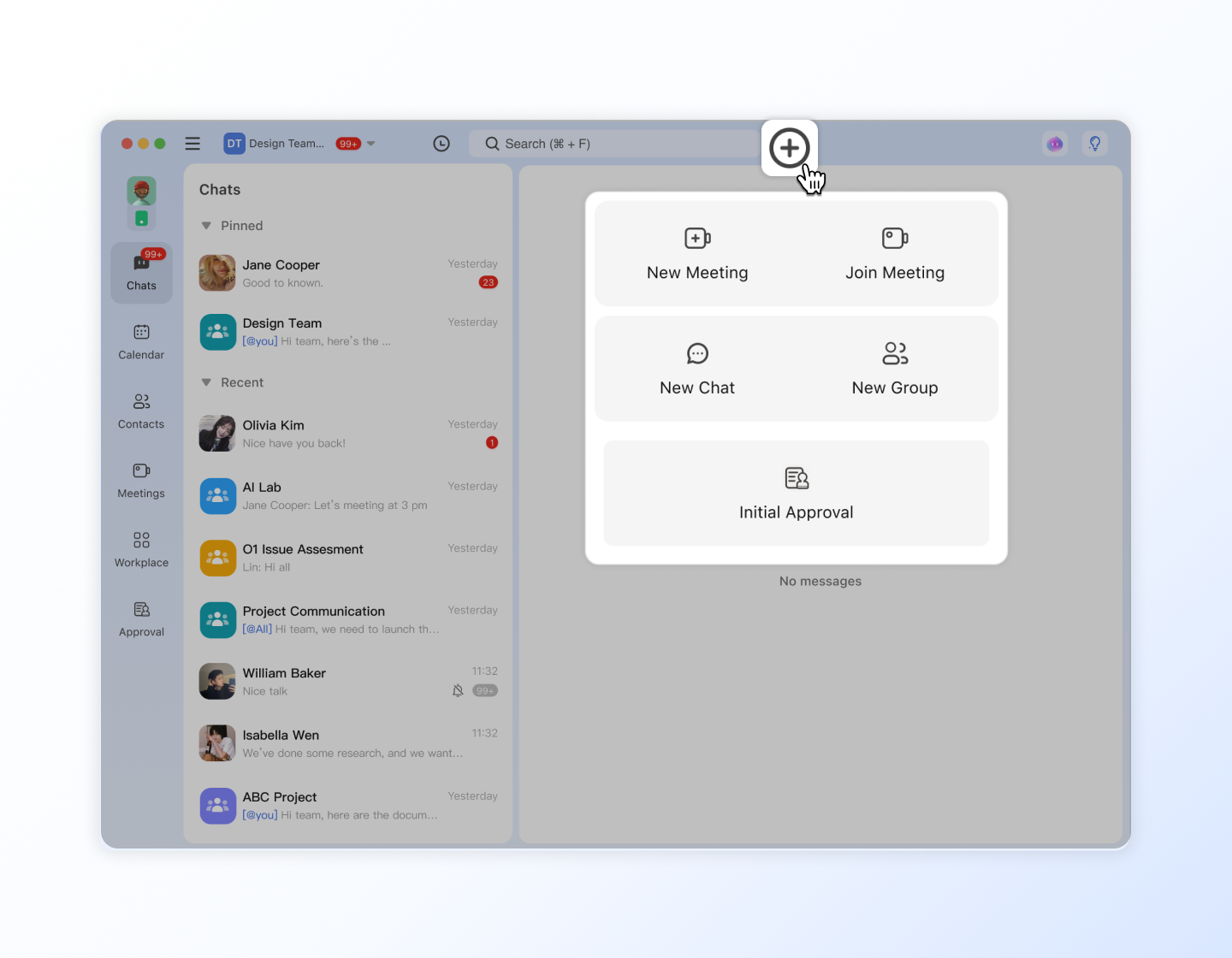
After you log into the Matrx desktop app, here's what you'll see.
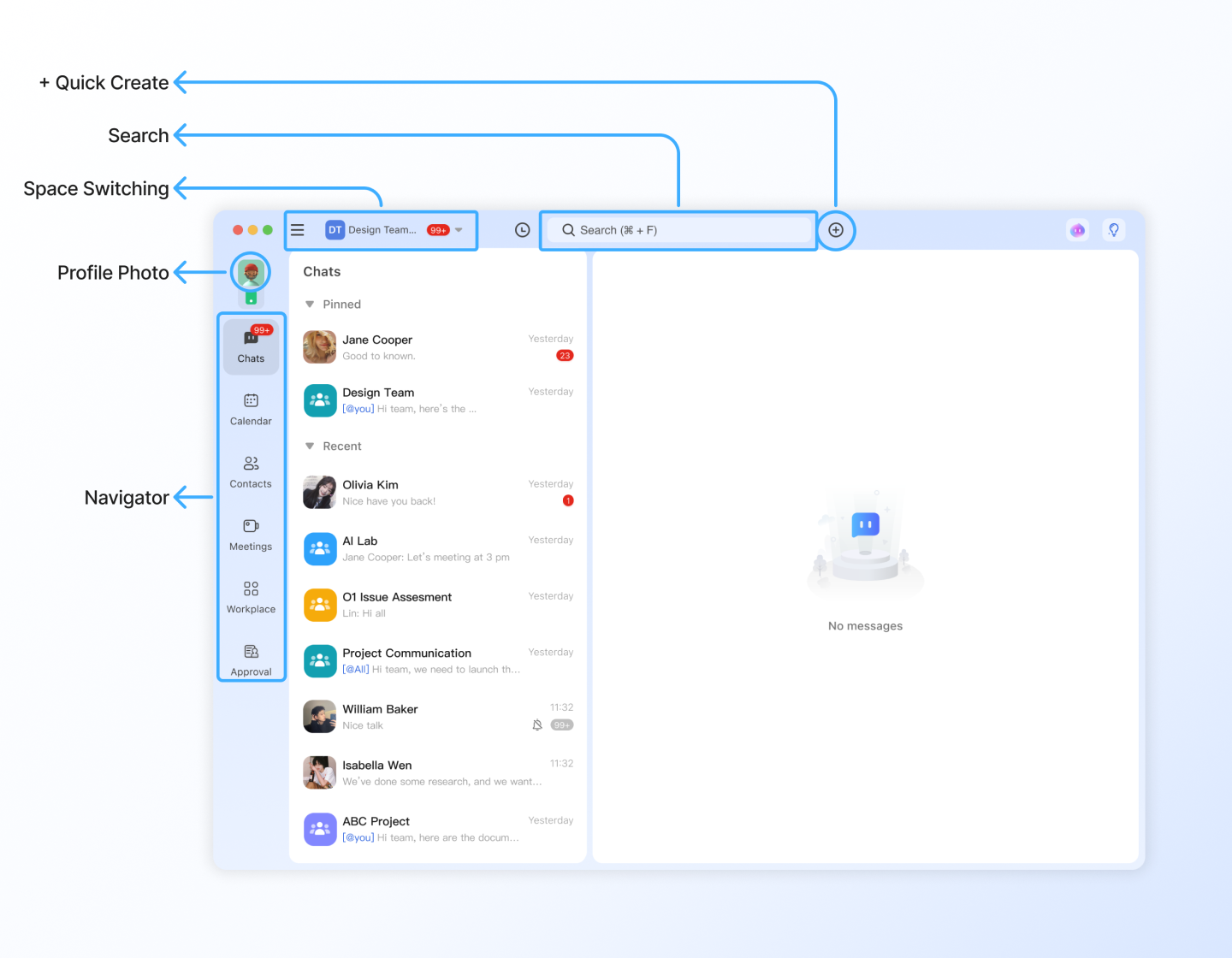
1 Profile Photo
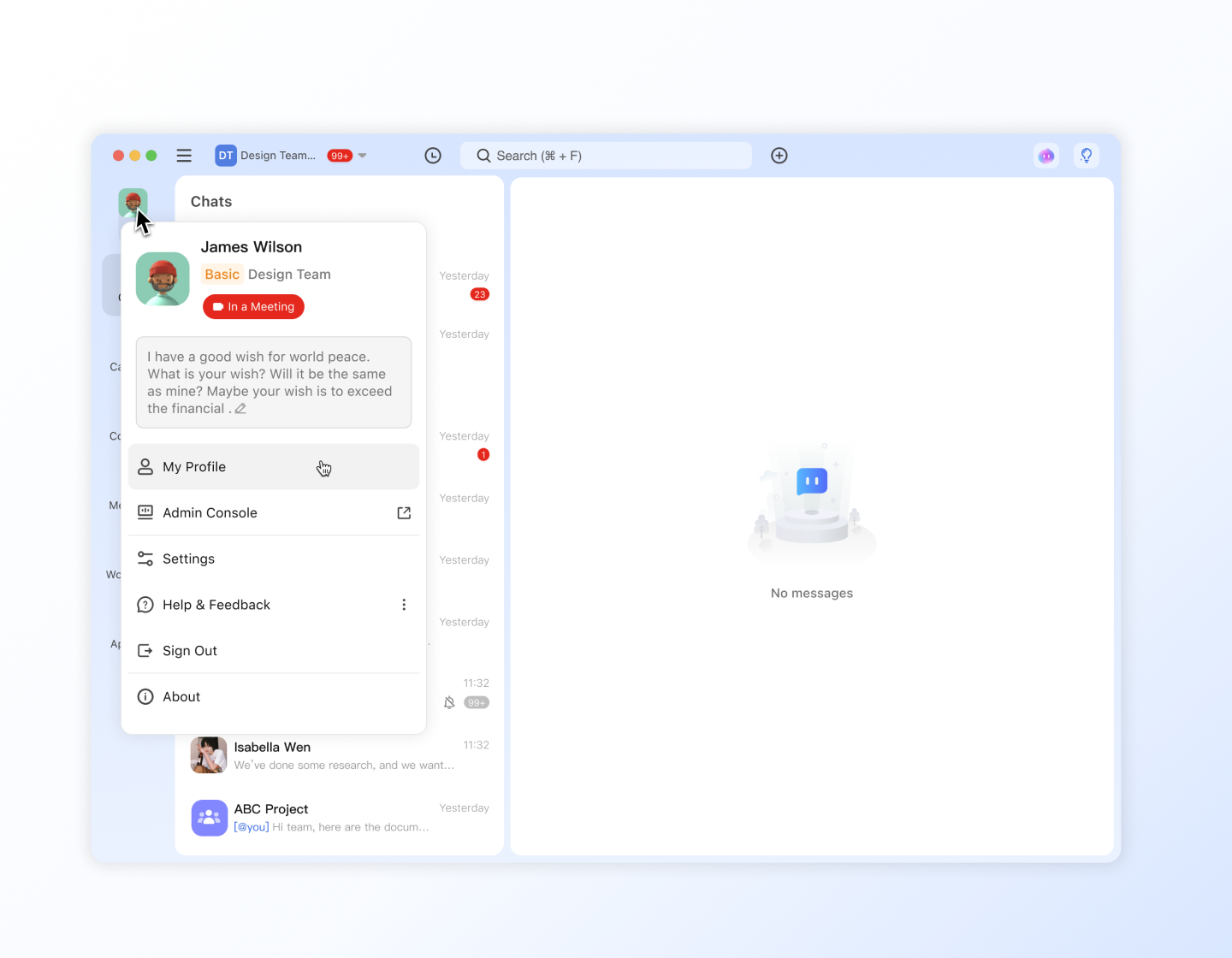
Click on your profile photo to view your personal information, modify your name, change your profile photo, set your status messages, and other personal information.
In the sidebar, you can also enter the security settings page, the general settings page, and enter the help and feedback page.
2 Navigator
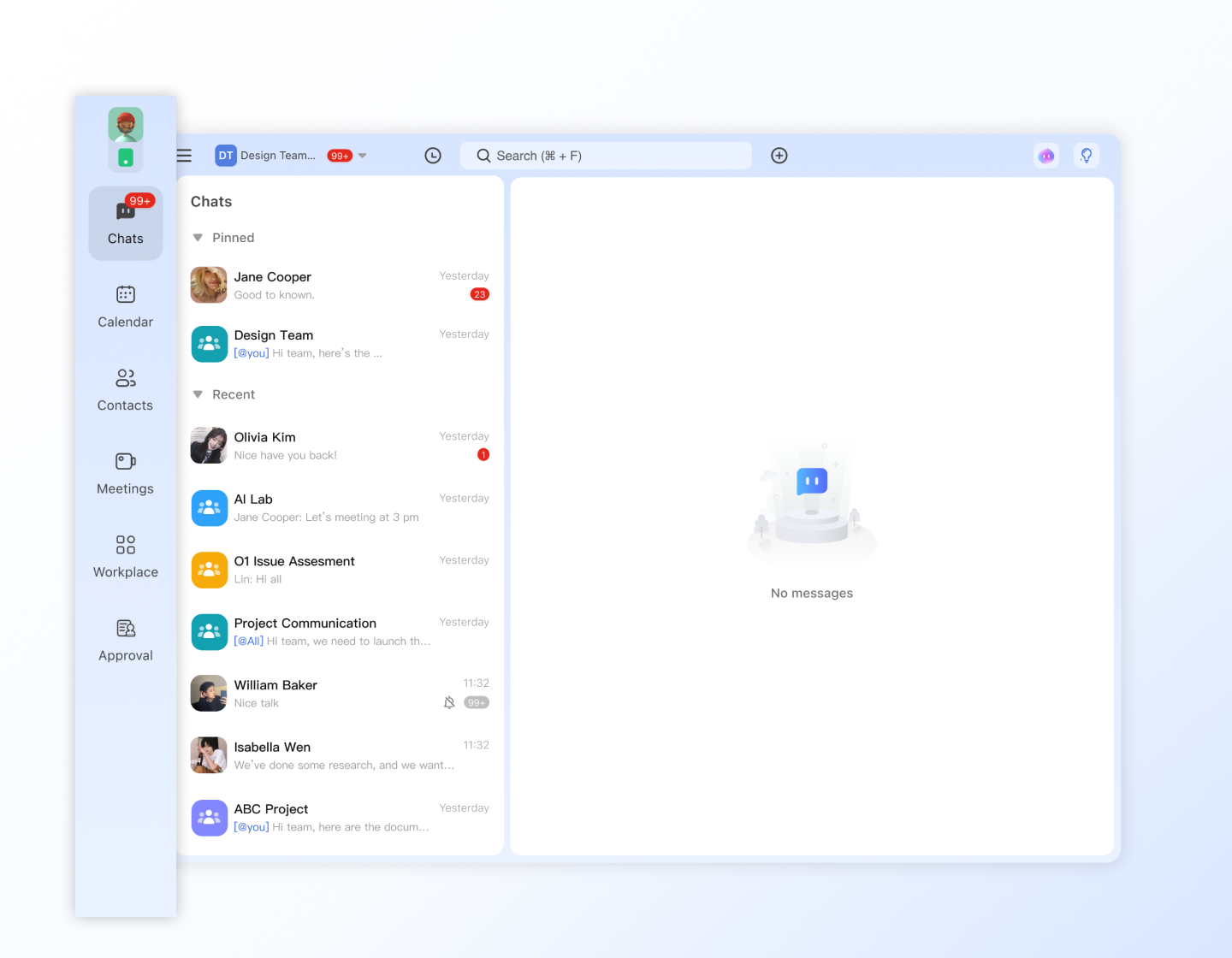
On the left side of the interface, below the personal avatar is the navigation bar area, where you can quickly switch to messages, calendar, meetings, contacts, and other functions.
- Chats: You can chat with friends or colleagues here, and message notifications will also remind you here.
- Calendar: You can manage your daily schedules here, your scheduled meetings and invited meetings
- Contacts: In Personal Space, you can view your friends here; in Enterprise Space, you can view the organizational structure here.
- Meetings: You can initiate instant meetings, create scheduled meetings, and view all scheduled meetings here.
- More - Approval (Enterprise Space): You can initiate or process approvals
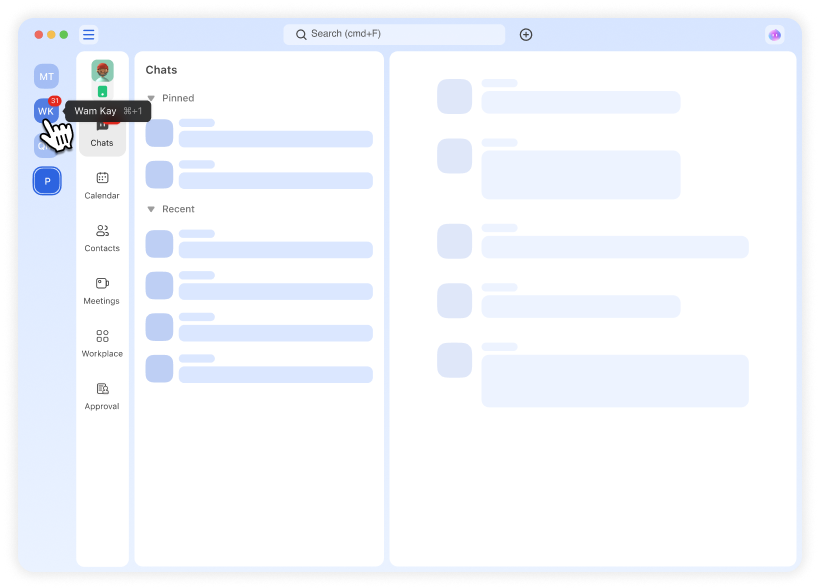
3 Space Switching
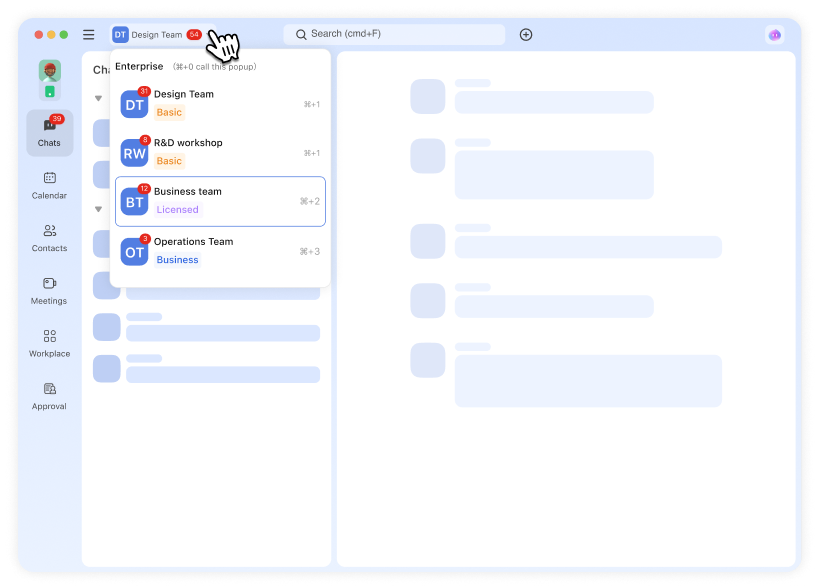
If you join an enterprise space, you can also quickly switch spaces to work collaboratively in different spaces.
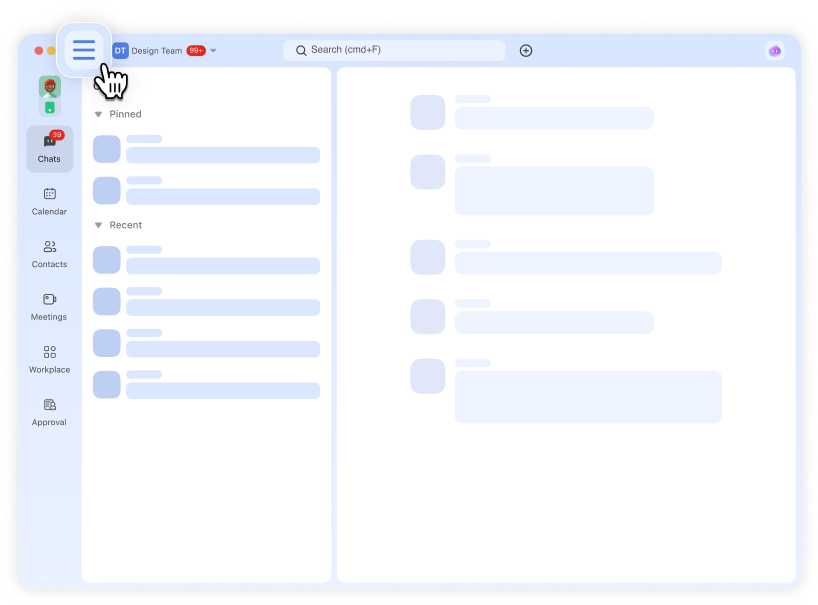
There are two switching modes (top navigation and left sidebar) available to suit different preferences.
- Switch enterprises from top navigation
- Switch enterprises from left sidebar.
If you cannot see the left sidebar, please switch mode by clicking the switch icon.
4 Search
Click the search bar at the top and enter keywords. You can quickly select the hit results in the drop-down search results.
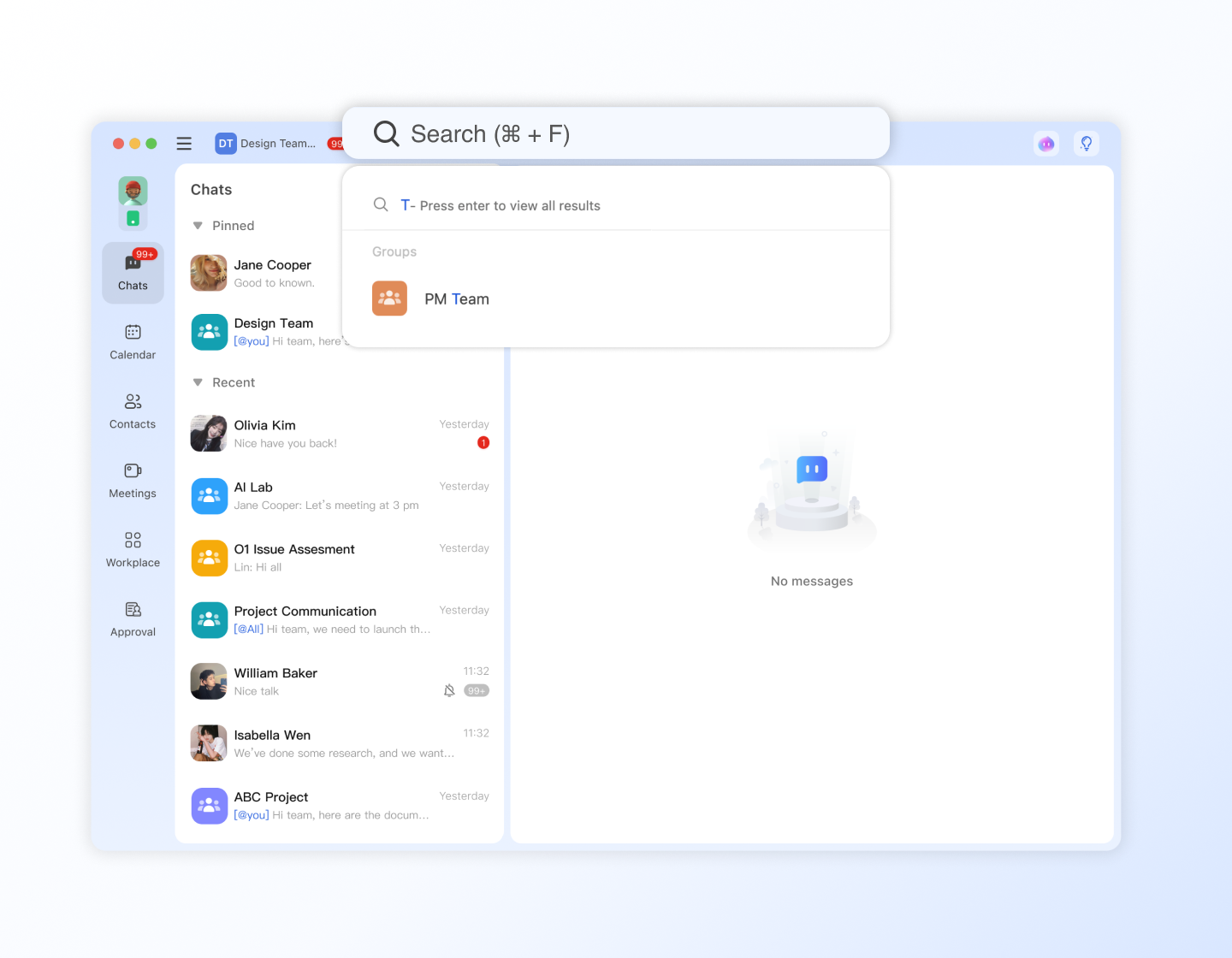 If your target is not in the drop-down search results, press enter to view all results.
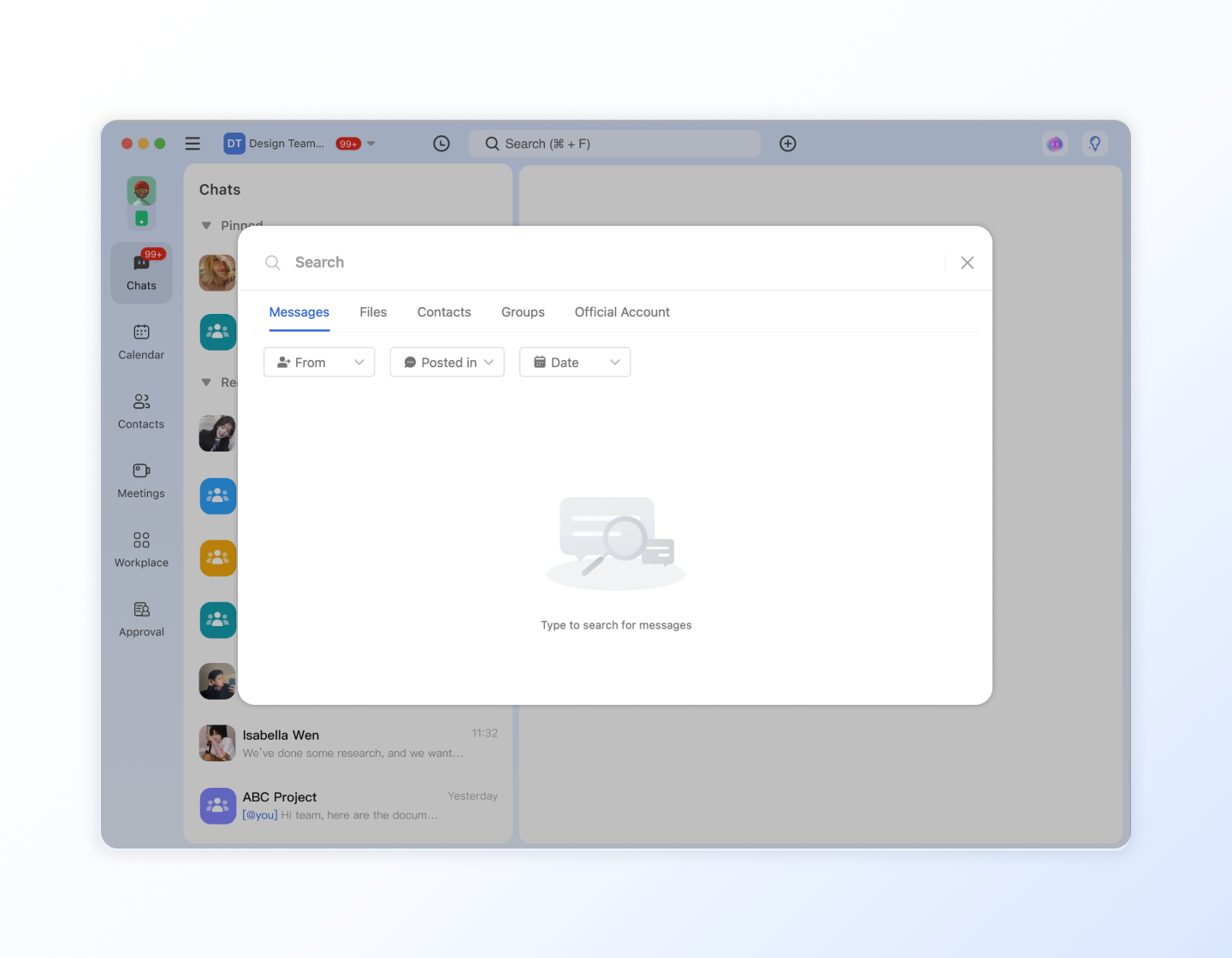
Or you can use the shortcut key (⌘ + F) to directly open the global search page. Here, you can search for contacts, chat records, groups, and sent or received files and other information
5 + Quick Create
There are multiple quick creation portals here. You can quickly start a chat, create a group, start a meeting, etc. In Personal Space, you can quickly add contacts; in Enterprise Space, you can quickly create approvals.
After you log into the Matrx mobile app, here's what you'll see.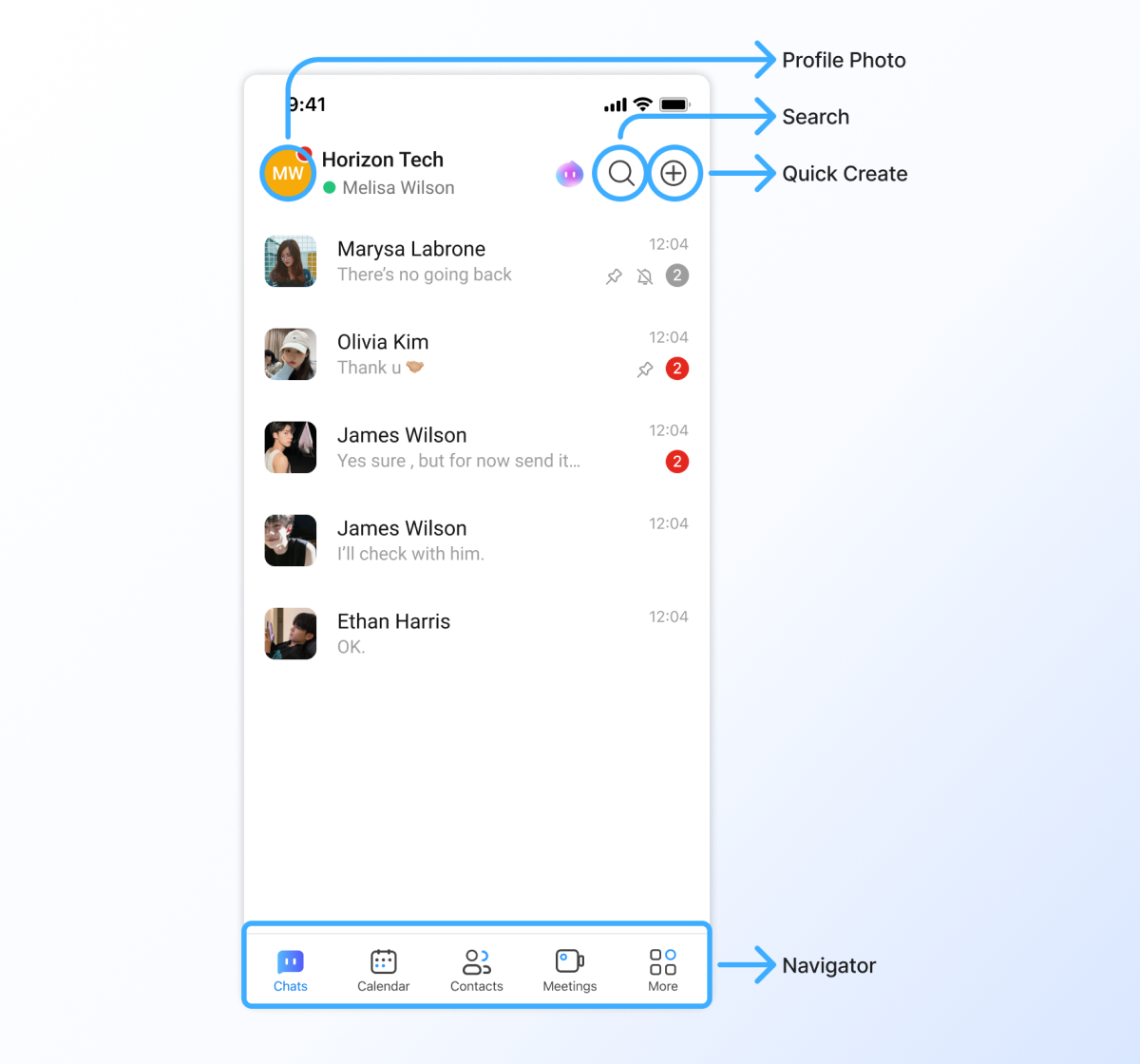
1 Profile Photo
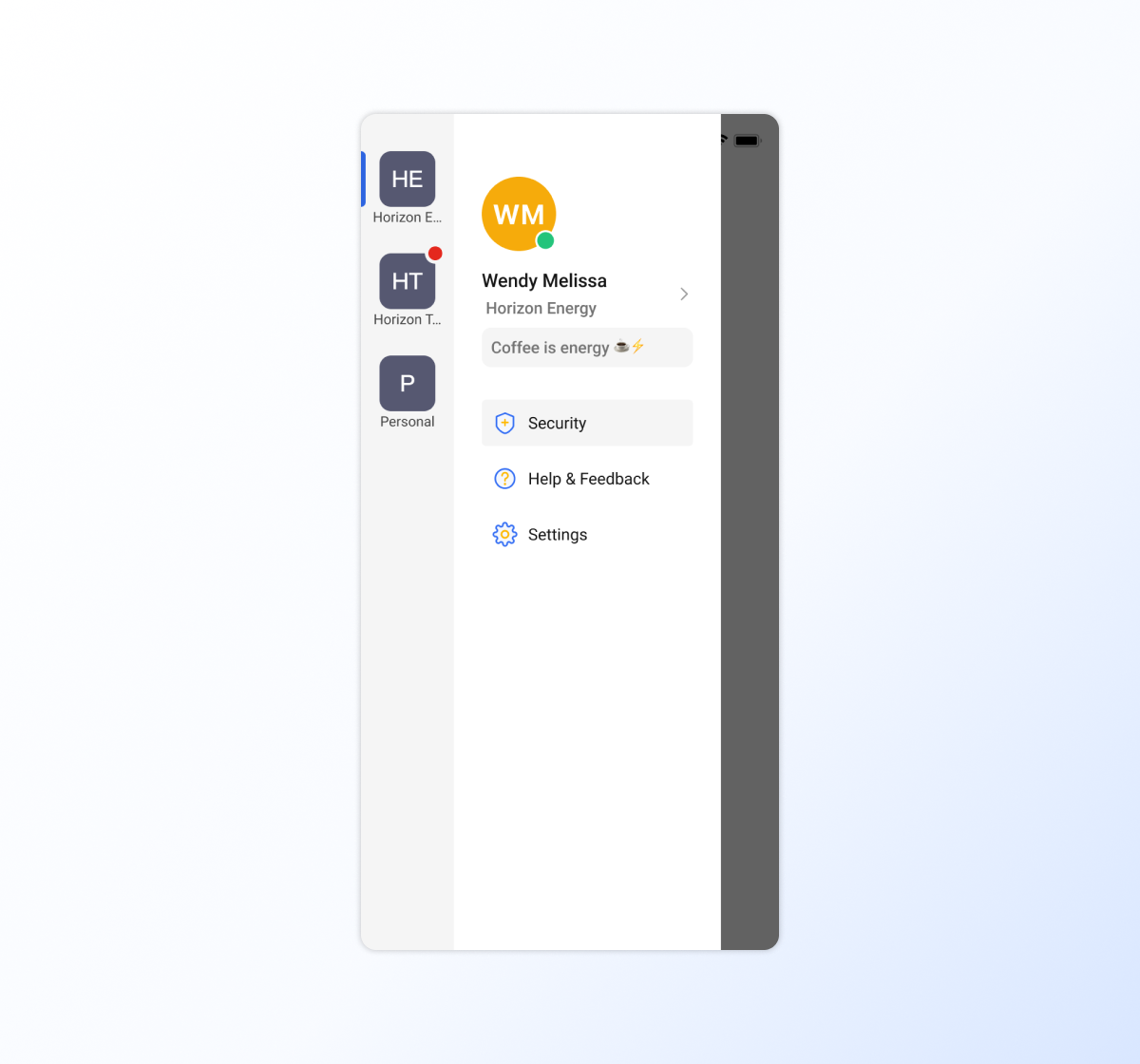
Click on your profile photo to view your personal information, modify your name, change your profile photo, set your status messages, and other personal information.
In the sidebar, you can also enter the security settings page, the general settings page, and enter the help and feedback page.
If you have joined an enterprise space, you can also click on the corresponding space in the sidebar to quickly switch spaces to work together in different office spaces.
2 Search
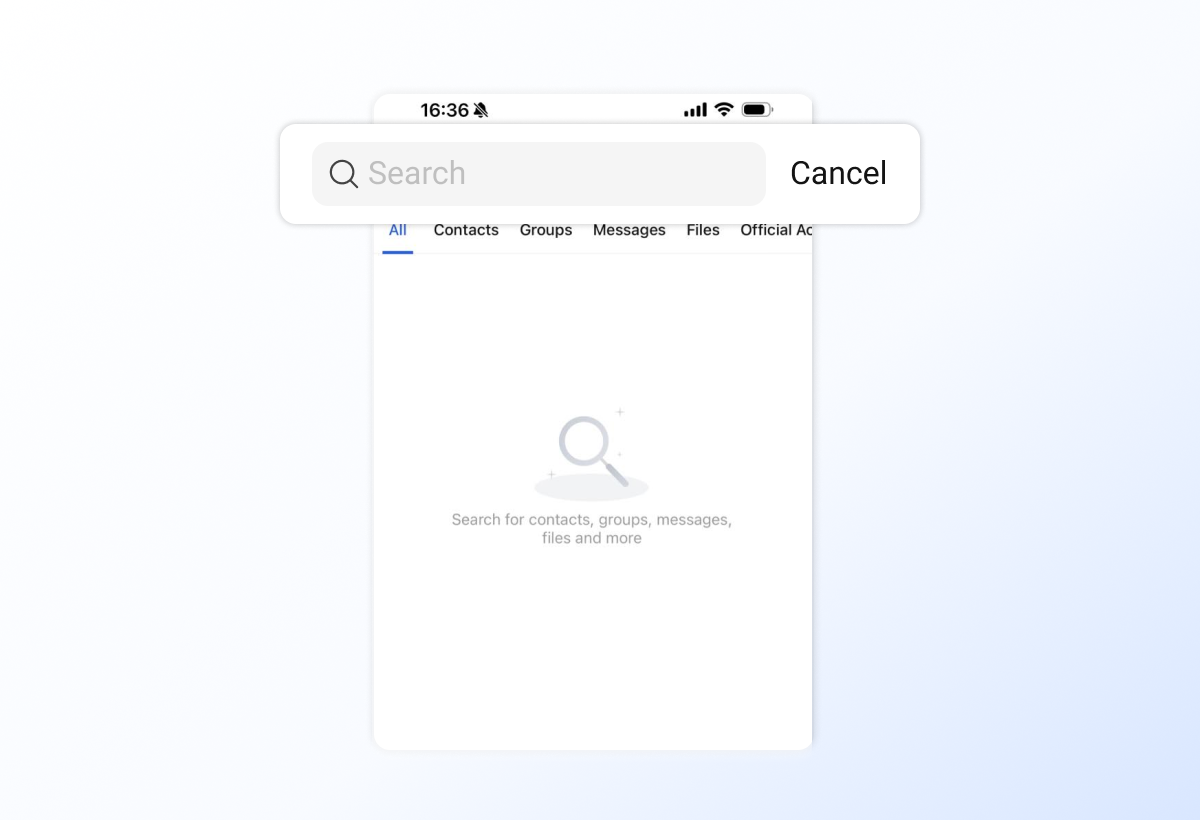
Click the 🔍 icon to enter the global search page. Here, you can search for contacts, messages, groups, and sent or received files.
3 + Quick Create
There are multiple quick creation portals here. You can quickly start a chat, create a group, start a meeting, etc. In Personal Space, you can quickly add contacts; in Enterprise Space, you can quickly create approvals.
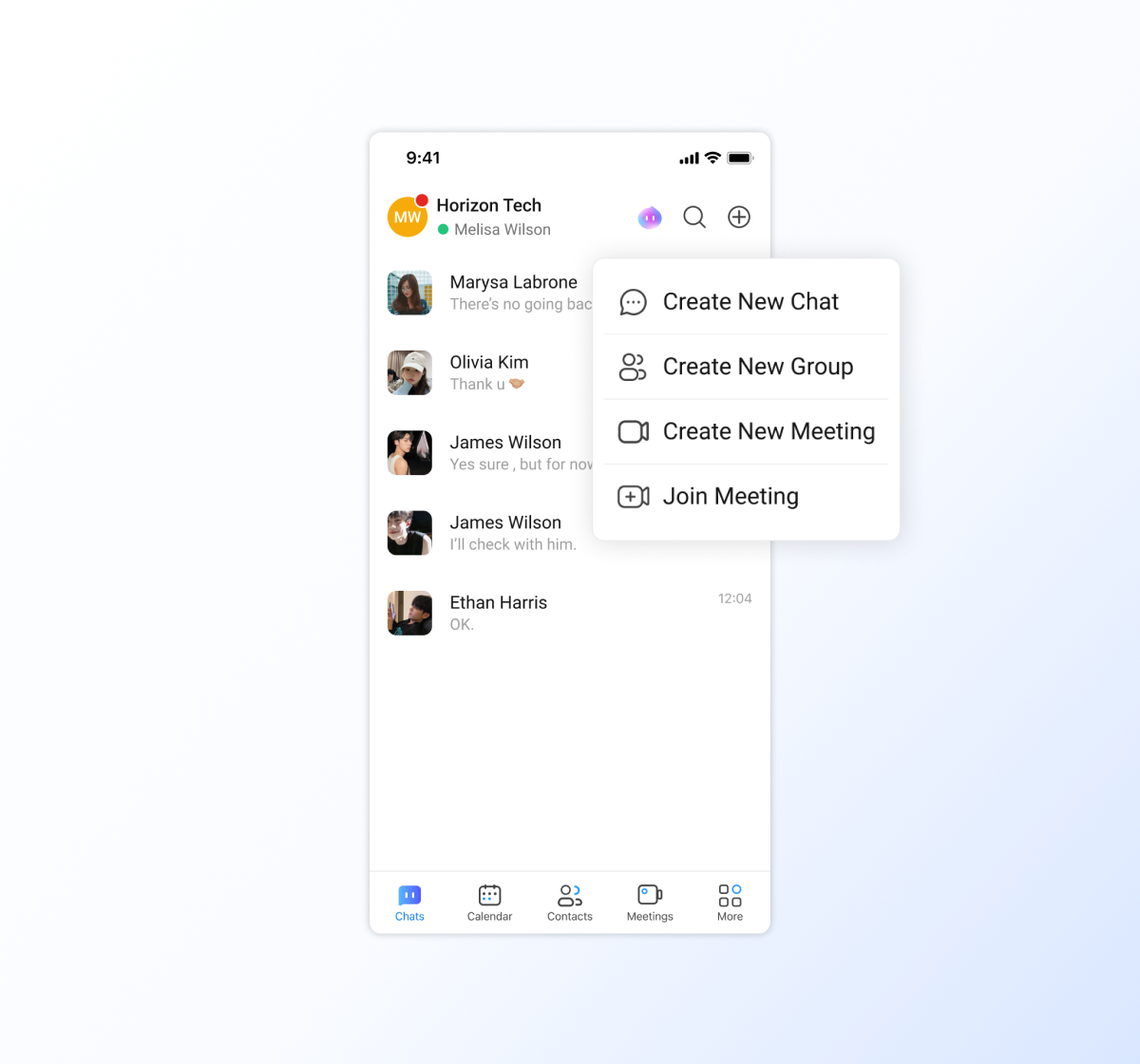
4 Navigator
At the bottom of the page is the navigation bar area, where you can quickly switch to functions such as Chats, Calendar, Contacts, Meetings, etc.
- Chats: You can chat with friends or colleagues here, and message notifications will also remind you here.
- Calendar: You can manage your daily schedules here, your scheduled meetings and invited meetings
- Contacts: In Personal Space, you can view your friends here; in Enterprise Space, you can view the organizational structure here.
- Meetings: You can initiate instant meetings, create scheduled meetings, and view all scheduled meetings here.
- More - Approval (Enterprise Space): You can initiate or process approvals